Reports
The Reports page generates PDF reports on demand or on a schedule.
Menu: Inventory › Reports
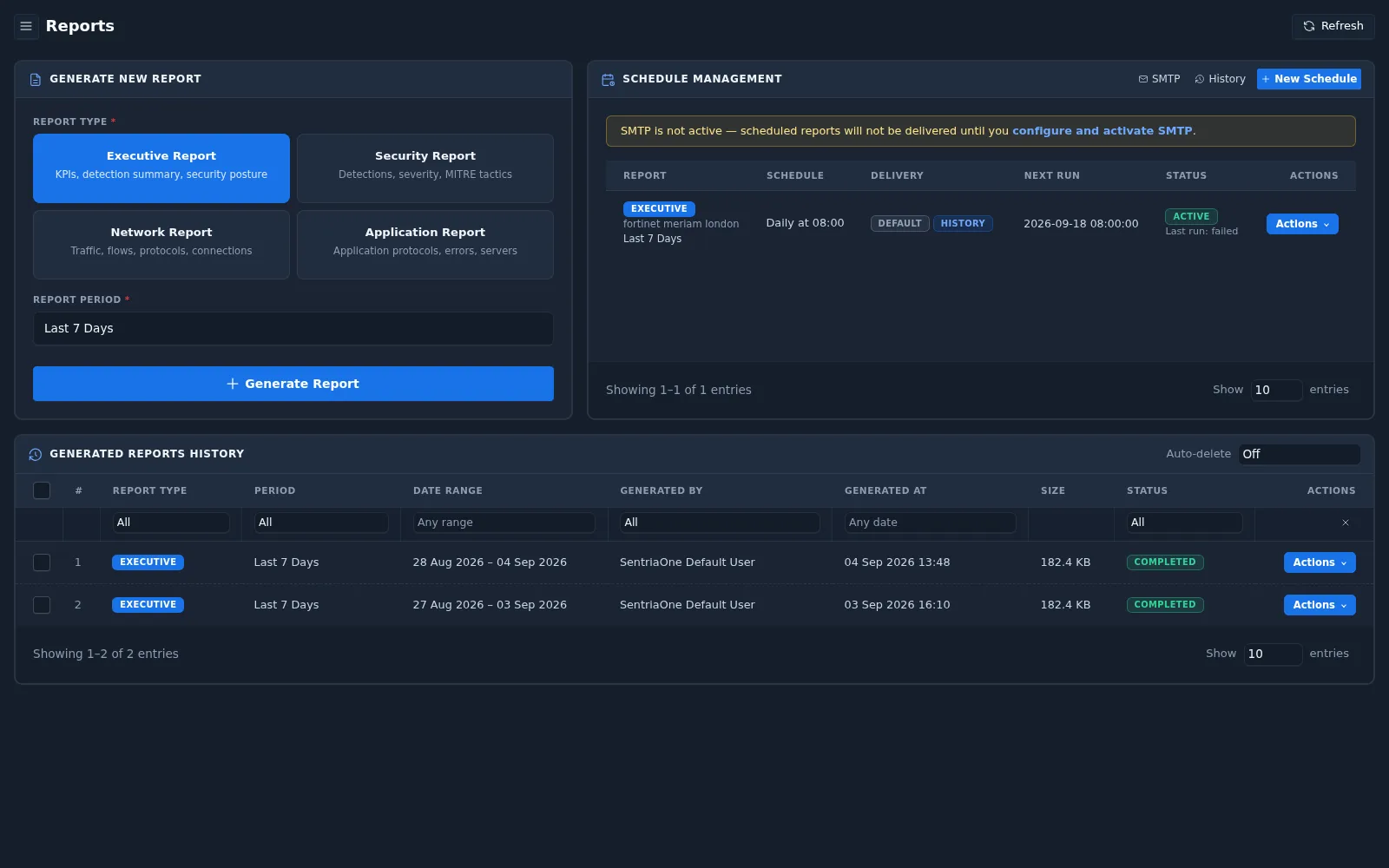
Generating a report
- Under Generate New Report, select a report type.
- Select a report period: Last 24 Hours, Last 7 Days, Last 30 Days, or a date/range within the last 37 days.
- Select Generate Report.
The generated report appears in Generated Reports History.
| Report type | Contents |
|---|---|
| Executive Report | KPIs, detection summary, security posture |
| Security Report | Detections, severity, MITRE tactics |
| Network Report | Traffic, flows, protocols, connections |
| Application Report | Application protocols, errors, servers |
Scheduling reports
Use Schedule Management to deliver reports automatically.
- Select New Schedule to create a schedule.
- The schedule table shows each schedule's report type and name, period, frequency (for example Daily at 08:00), delivery, next run, status, and last run result.
- Use Actions to manage an existing schedule.
- Select History to view past schedule runs.
caution
Scheduled reports are delivered by email. If SMTP is not active, the page shows a warning and scheduled reports are not delivered. Configure email in Integration › Email and use the SMTP button to open it.
Generated reports history
The history table lists generated reports with type, period, date range, generated by, generated at, size, and status.
| Status | Meaning |
|---|---|
| Pending | Waiting to be generated |
| Processing | Being generated |
| Completed | Ready to open or download |
| Failed | Generation failed |
- Filter the history by report type, period, user, and status.
- Use Actions to open, download, or delete a report.
- Use Auto-delete to remove old reports automatically after 7, 14, 30, 60, 90, 180, or 365 days, or set it to Off.