Release Notes
SentriaOne xSIEM 26.1
Highlights
| Area | Change |
|---|---|
| Records | New: AI Search Assistant — search records by asking a question in natural language |
| User interface | Changed: adjustments to the dashboard's visual presentation for readability and consistency |
New: AI Search Assistant in Records
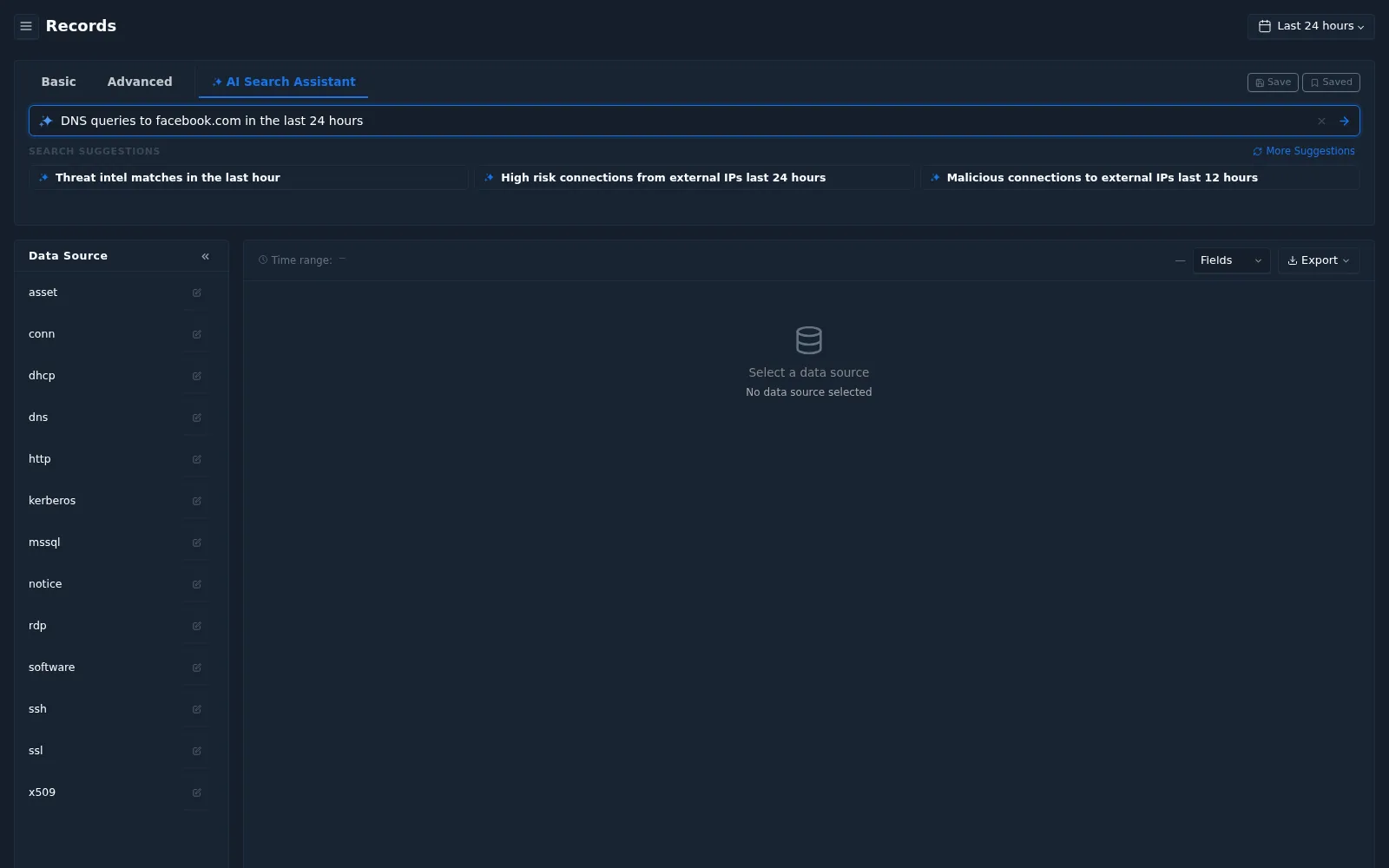
The Records page has a new search mode, AI Search Assistant, next to Basic and Advanced.
Until now, finding specific records required choosing the right data source and writing a query in the query language. With AI Search Assistant you describe what you are looking for in plain language, and SentriaOne xSIEM builds the search for you.
How it works
- Open Inventory › Records and select AI Search Assistant.
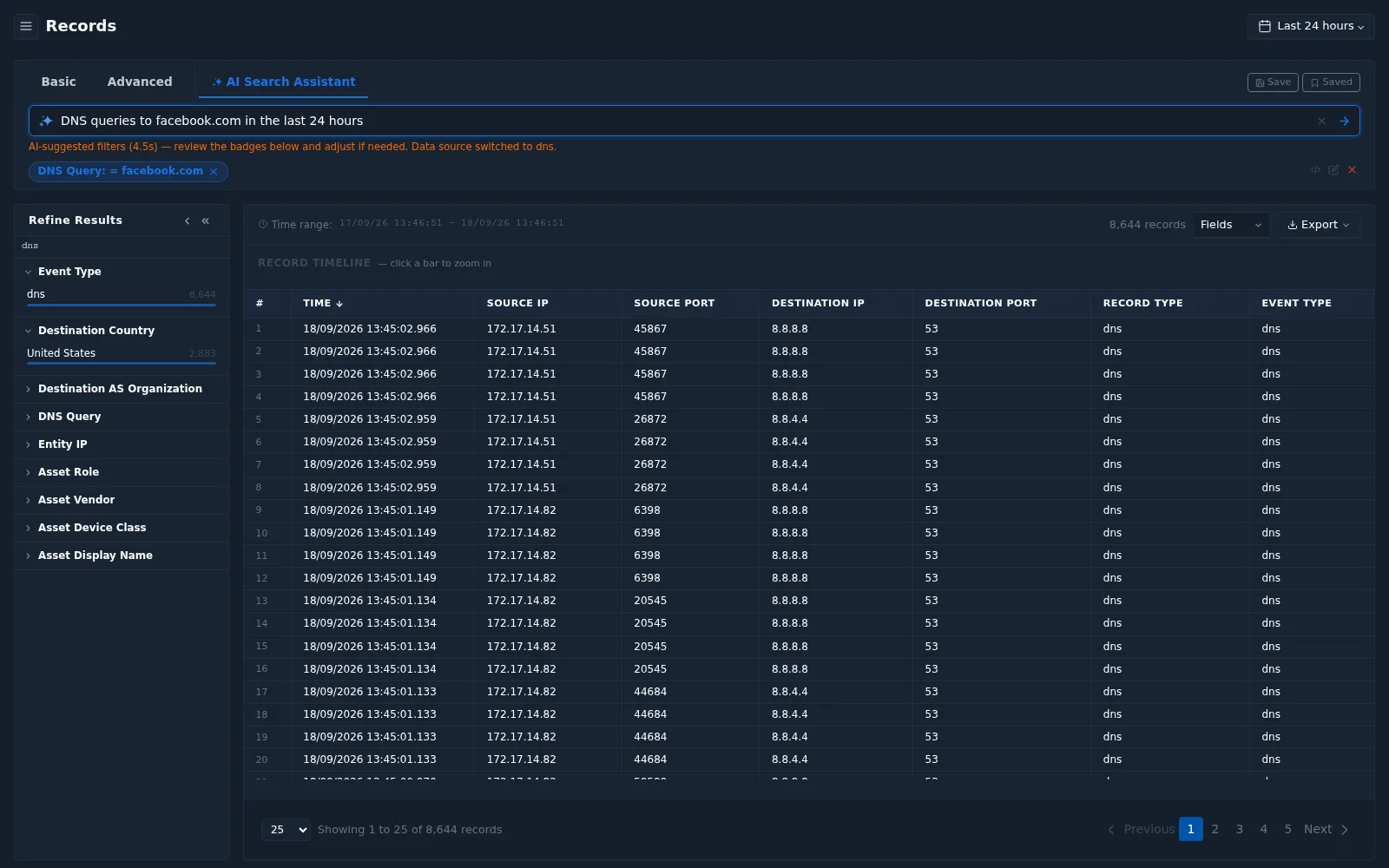
- Type a question in the search box — for example DNS queries to facebook.com in the last 24 hours — and press Enter, or select one of the Search Suggestions.
- The assistant translates the question into a regular search:
- it selects the matching data source (for example
dnsorconn), - it creates filters, shown as badges (for example
DNS Query: = facebook.com), - and it runs the search.
- it selects the matching data source (for example
- A message such as AI-suggested filters (4.5s) — review the badges below and adjust if needed. Data source switched to dns. explains what was applied.
- Review the badges. Remove or adjust any filter that does not match your intention, then continue with Refine Results, the Record Timeline, Save, or Export as usual.
Example questions
| Question | Resulting search (example) |
|---|---|
| DNS queries to facebook.com in the last 24 hours | Data source dns, filter DNS Query: = facebook.com |
| High risk connections from external IPs last 24 hours | Data source conn, filters excluding private source ranges (10.0.0.0/8, 172.16.0.0/12, 192.168.0.0/16) and Risk Score: ≥ 7 |
| Threat intel matches in the last hour | Built-in suggestion |
| Malicious connections to external IPs last 12 hours | Built-in suggestion |
Select More Suggestions for further examples.
Why it matters
- Faster investigations — go from a question to the evidence without looking up field names or query syntax.
- Easier for new analysts — the generated filters show how a question maps to fields, which also helps when learning the query language.
- Transparent and editable — the assistant does not hide the search. Every filter is visible and can be changed or removed.
The assistant interprets your question. Check the badges before drawing conclusions from the results. If a search returns 0 records, the filters may be too narrow for the selected time range — widen the time range or remove a filter.
See How to find who accesses a website for a walkthrough that finds the same records by drilling down from Activity › DNS.
Changed: User interface adjustments
The visual presentation of the dashboard has been adjusted — including layout, spacing, and styling — to improve readability and give pages a more consistent look.
The Dashboard UI guide in this documentation, including its screenshots, reflects the 26.1 interface.