How to analyze a detection
This walkthrough shows how to analyze one detection starting directly from the Detections page. It follows the same structure as How to analyze top affected internal IPs, but focuses on a single detection title in depth.
The example is Confirmed C2 Beacon With Lateral Movement — a behaviour detection with strong evidence on the wire, taken from a demonstration environment.
Step 1 — Find the detection
Open Security › Detections and select All Events. Narrow the list:
| Filter | Value in this example | Why |
|---|---|---|
| Category | C2 | Focus on command-and-control activity |
| Sort | Highest Risk | Put the most urgent detections first |
| Time range | Last 24 hours | The period to review |
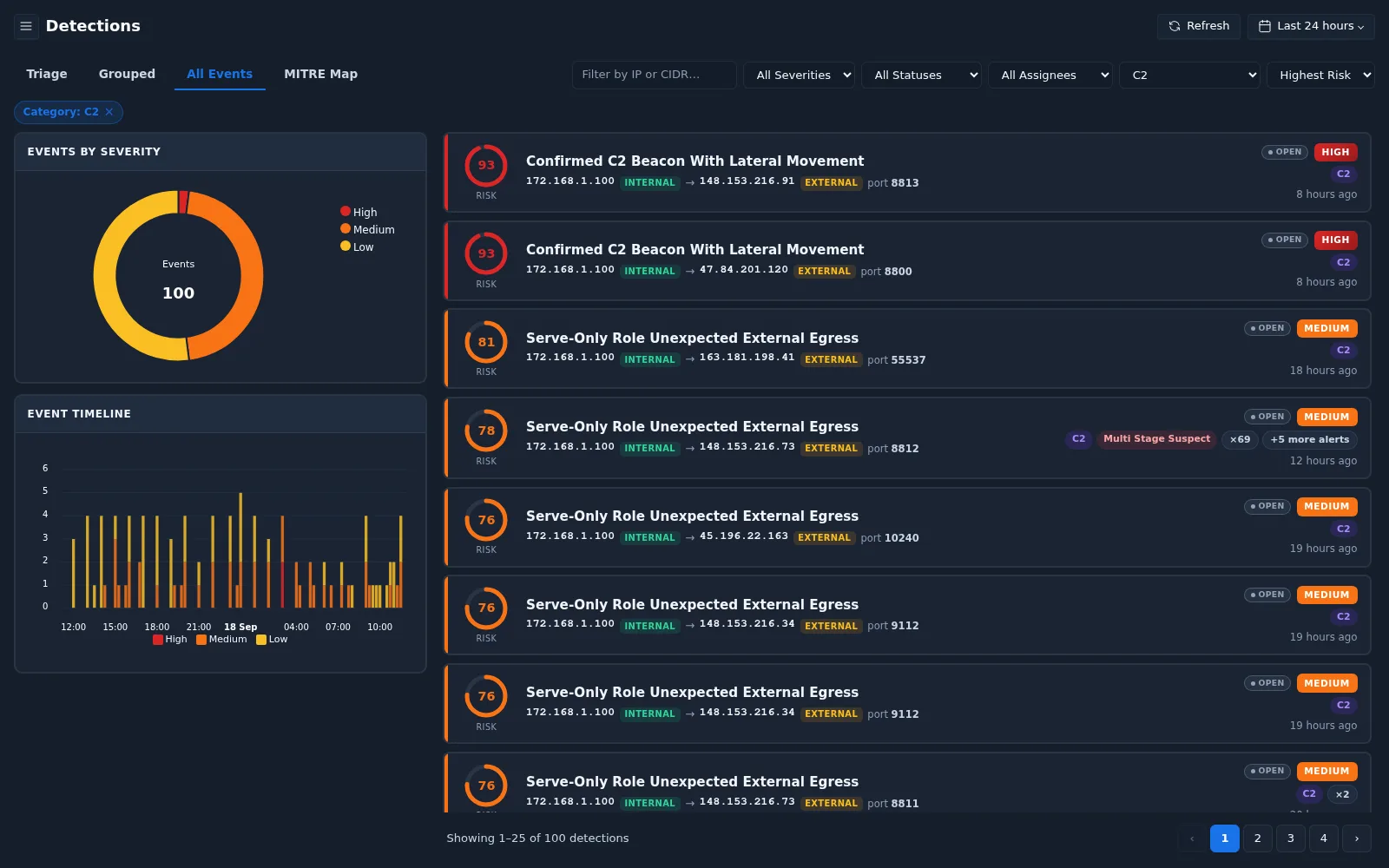
The top event is Confirmed C2 Beacon With Lateral Movement — risk 93,
severity HIGH, from internal 172.168.1.100 to external 148.153.216.91
on port 8813. A second event with the same title from the same host goes to
a different destination (47.84.201.120, port 8800) — note this for later.
Select the event to open the detection detail.
Step 2 — Understand what was detected
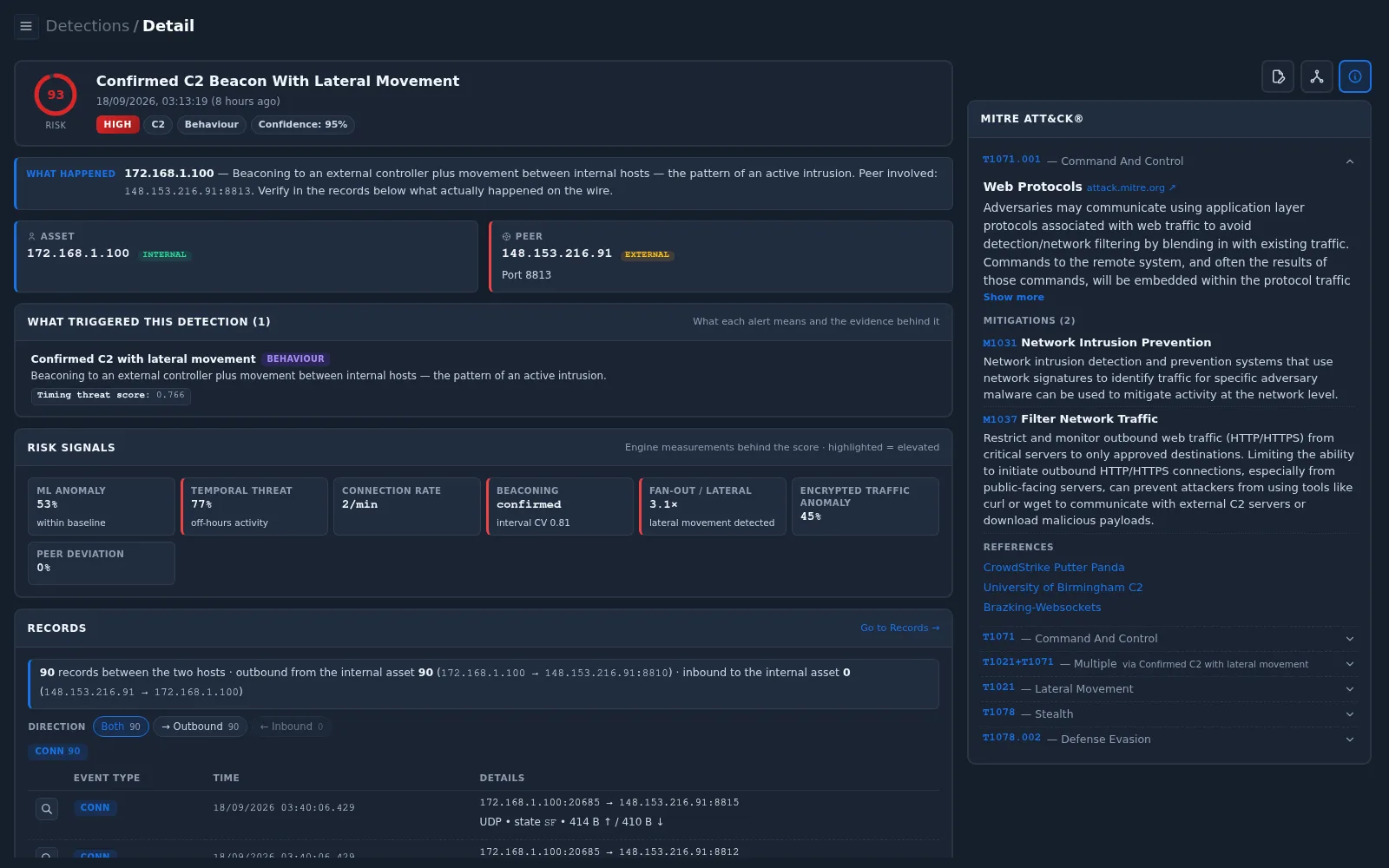
| Section | Value in this example | Meaning |
|---|---|---|
| Header | Risk 93, HIGH, category C2, method Behaviour, confidence 95% | A behaviour-based detection with very high confidence |
| What Happened | Beaconing to an external controller plus movement between internal hosts — the pattern of an active intrusion | Two things were seen together: regular check-ins to an external host, and unusual internal communication |
| Asset | 172.168.1.100, internal | The host under suspicion |
| Peer | 148.153.216.91, external, port 8813 | The suspected external controller |
| What Triggered This Detection | Confirmed C2 with lateral movement (BEHAVIOUR), timing threat score 0.766 | One behaviour alert; the timing score measures how regular and suspicious the timing is |
A Behaviour detection is not based on a known signature. It is raised because the traffic pattern resembles an attack. The next steps confirm whether the pattern is really present, and whether it is malicious.
Step 3 — Read the risk signals and MITRE ATT&CK
Scroll to Risk Signals. Highlighted signals are elevated.
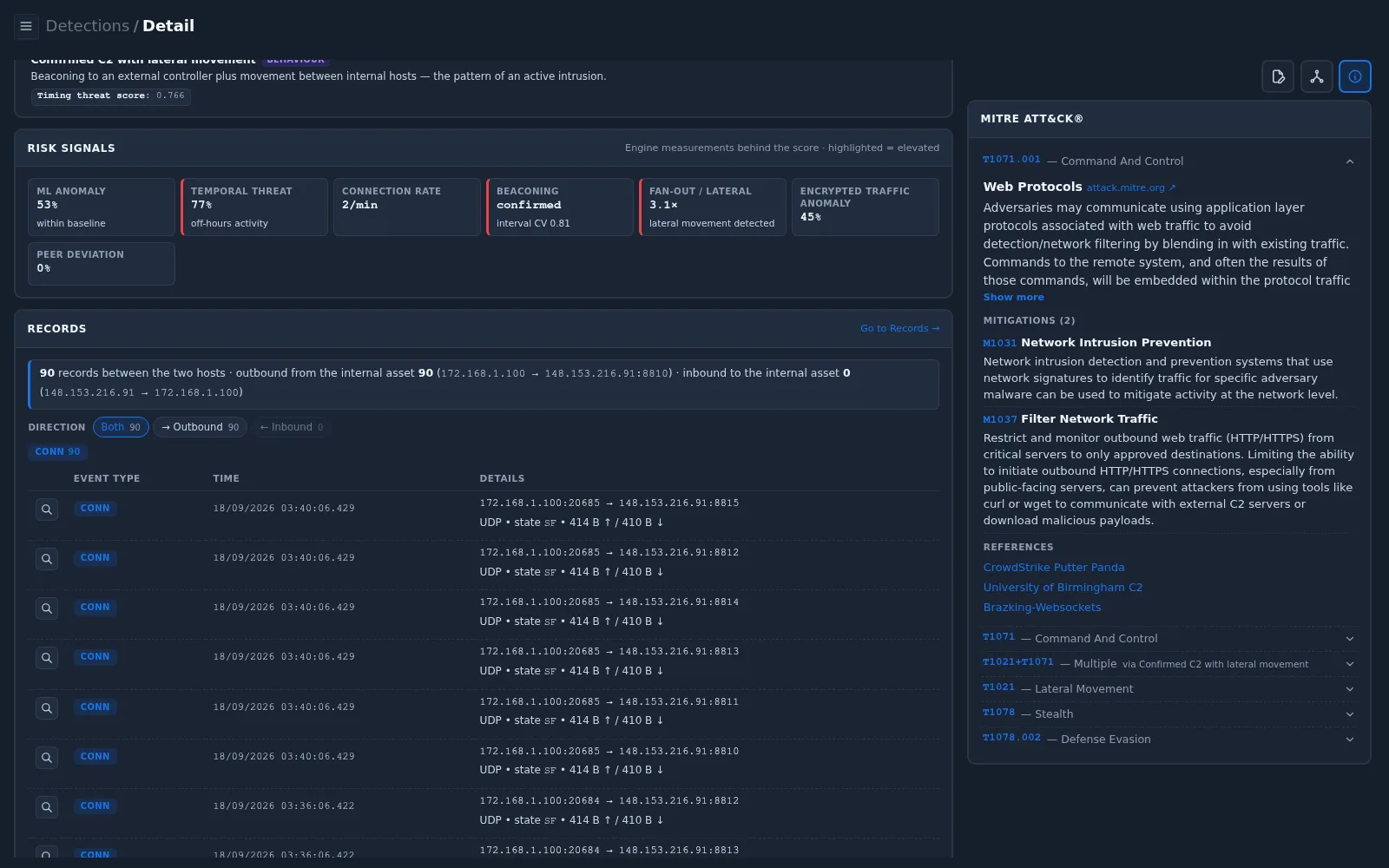
| Signal | Value | Interpretation |
|---|---|---|
| Beaconing | confirmed, interval CV 0.81 | Connections repeat at regular intervals — the key sign of automated check-ins. Interval CV (coefficient of variation) describes how much the intervals vary |
| Temporal Threat | 77%, off-hours activity | Activity continues outside normal working hours |
| Fan-out / Lateral | 3.1×, lateral movement detected | The host talks to about three times more internal peers than usual |
| ML Anomaly | 53%, within baseline | Overall volume is not unusual — the concern is the pattern, not the size |
| Connection Rate | 2/min | Low and steady — typical of beacons, which avoid attracting attention |
| Peer Deviation | 0% | The peer is not unusual compared with this host's normal peers — the behaviour has been going on for some time |
The MITRE ATT&CK panel maps the detection to several techniques:
| Technique | Tactic | Relevance |
|---|---|---|
| T1071 / T1071.001 | Command and Control | Communication with a controller using an application-layer protocol |
| T1021 | Lateral Movement | Use of remote services to reach other internal hosts |
| T1078 / T1078.002 | Stealth / Defense Evasion | Use of valid (domain) accounts |
The mitigations listed — M1031 Network Intrusion Prevention and M1037 Filter Network Traffic — are the recommended follow-up actions.
Step 4 — Verify the evidence in the records
The Records section shows the traffic between the asset and the peer.
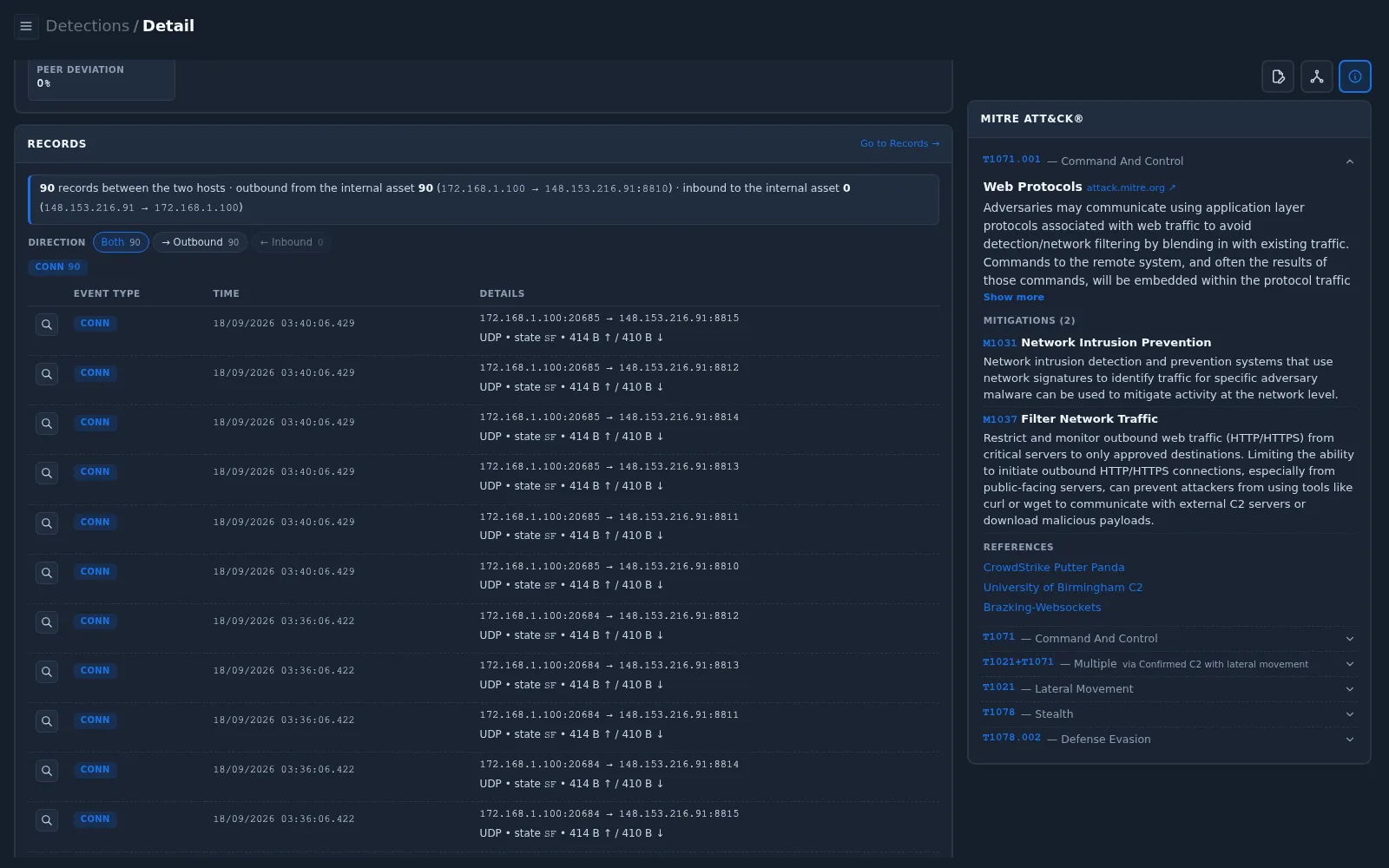
| Observation | Meaning |
|---|---|
| 90 records, Outbound 90, Inbound 0 | The internal host always starts the communication |
All records are CONN, UDP, state SF | Short, completed UDP exchanges — no application protocol identified |
Each check-in contacts six ports at once (8810–8815) | A fixed, programmed behaviour |
| Check-ins at 03:24:06, 03:28:06, 03:32:06, 03:36:06, 03:40:06 … | Exactly every 4 minutes — the beacon interval, visible in the records |
| Each exchange is about 414 B ↑ / 410 B ↓ | Small, identical keep-alive messages; no data transfer |
This confirms that the beaconing is real: the host checks in to
148.153.216.91 on a fixed schedule, day and night. What the records do
not show yet is who the destination is and whether the check-ins are
authorized.
Use Go to Records → to see the full history of this communication beyond ±30 minutes, and to check whether other internal hosts contact the same peer.
Step 5 — Analyze the participants
Asset
Open Participant & History (middle icon). The Detections — 172.168.1.100 list shows that the same host also has repeated Serve-Only Role Unexpected External Egress (C2) and ML Anomaly (UEBA) detections.
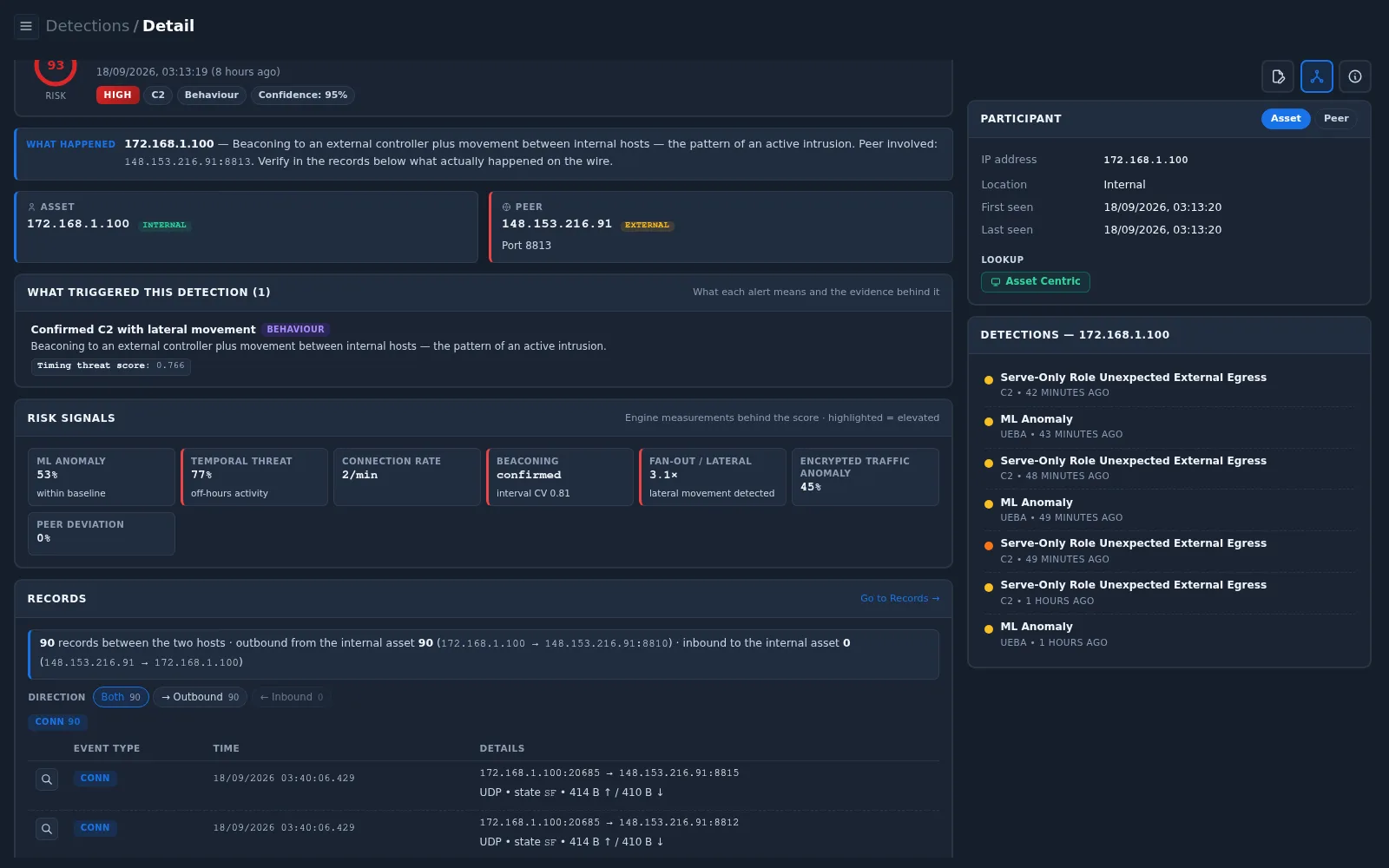
Select Asset Centric to open the asset profile:
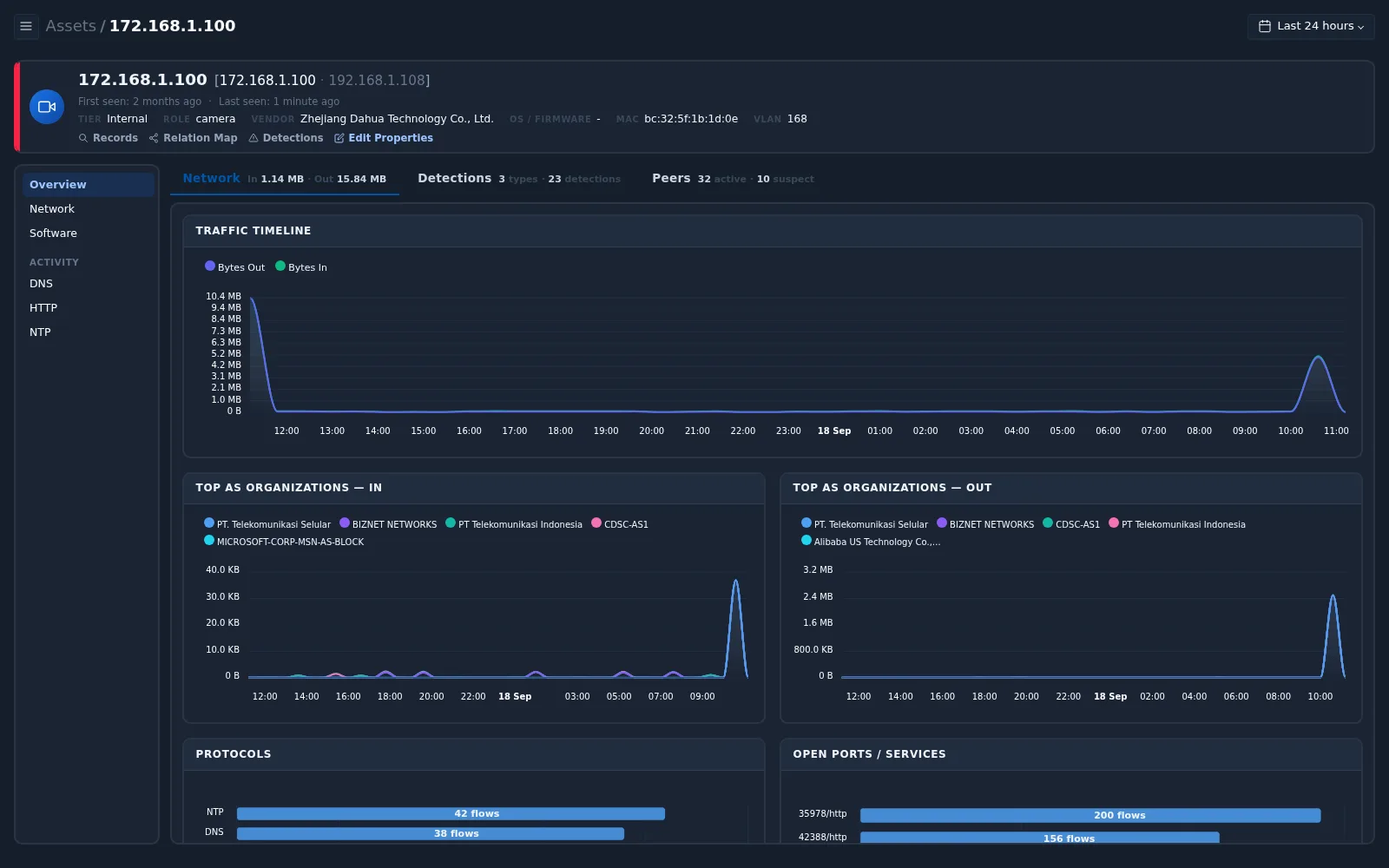
| Field | Value | Interpretation |
|---|---|---|
| Role | camera | An IP camera — it should mainly serve video, not initiate external connections |
| Vendor | Zhejiang Dahua Technology Co., Ltd. | Camera manufacturer — relevant when checking for vendor cloud services |
| VLAN | 168 | The camera network segment |
| Detections | 3 types · 23 detections | Repeated activity, not a one-off event |
| Peers | 32 active · 10 suspect | Several of its communication partners are considered suspicious |
Use Relation Map on the asset profile to see which internal hosts the camera communicates with — this is where the lateral-movement signal can be checked.
Peer
Switch the panel to Peer.
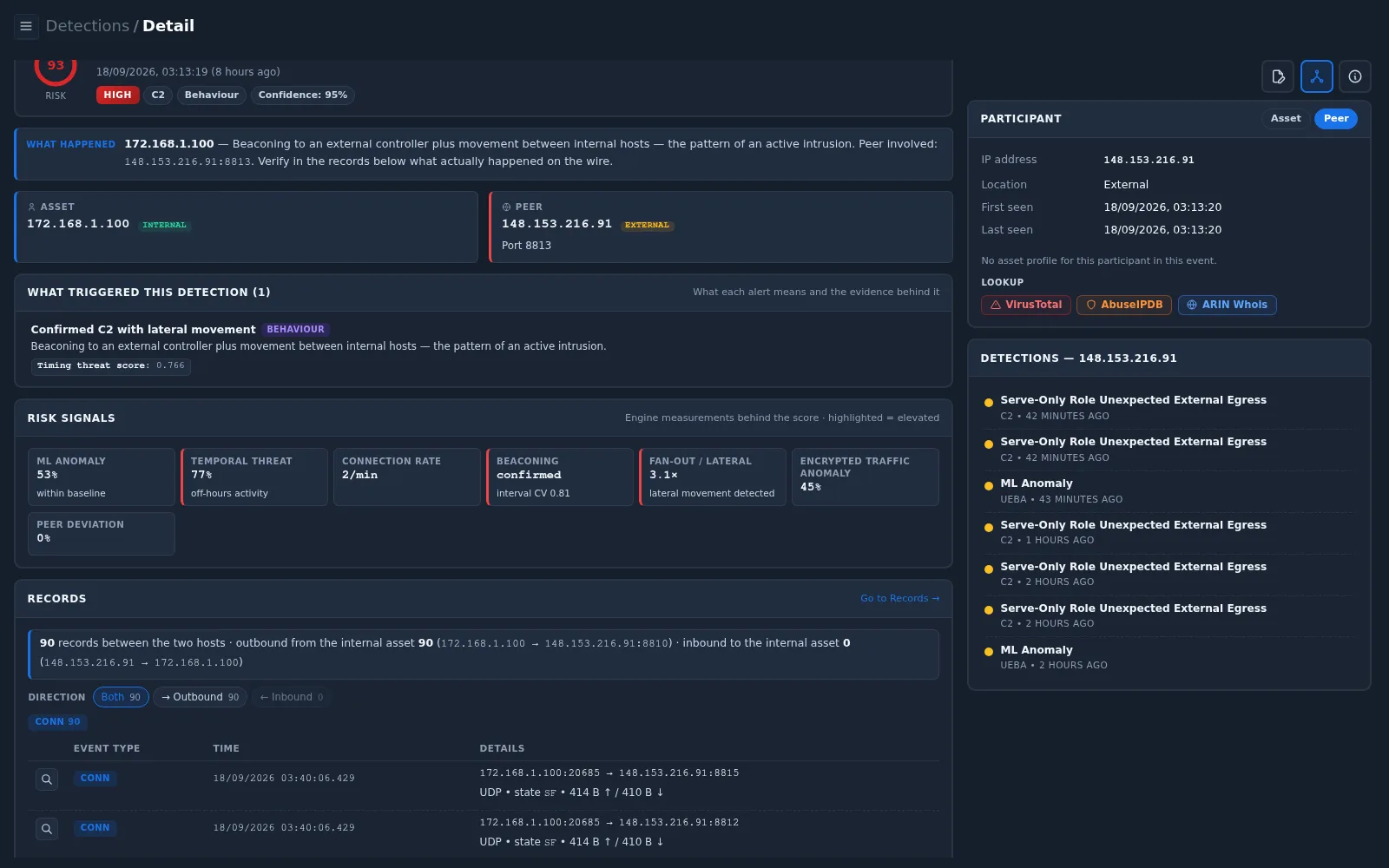
148.153.216.91is External with no asset profile.- Detections — 148.153.216.91 lists further detections involving the same peer, including Serve-Only Role Unexpected External Egress and ML Anomaly. When several cameras contact the same destination, the behaviour is shared across the device fleet.
Third-party reputation
Select Lookup › VirusTotal:
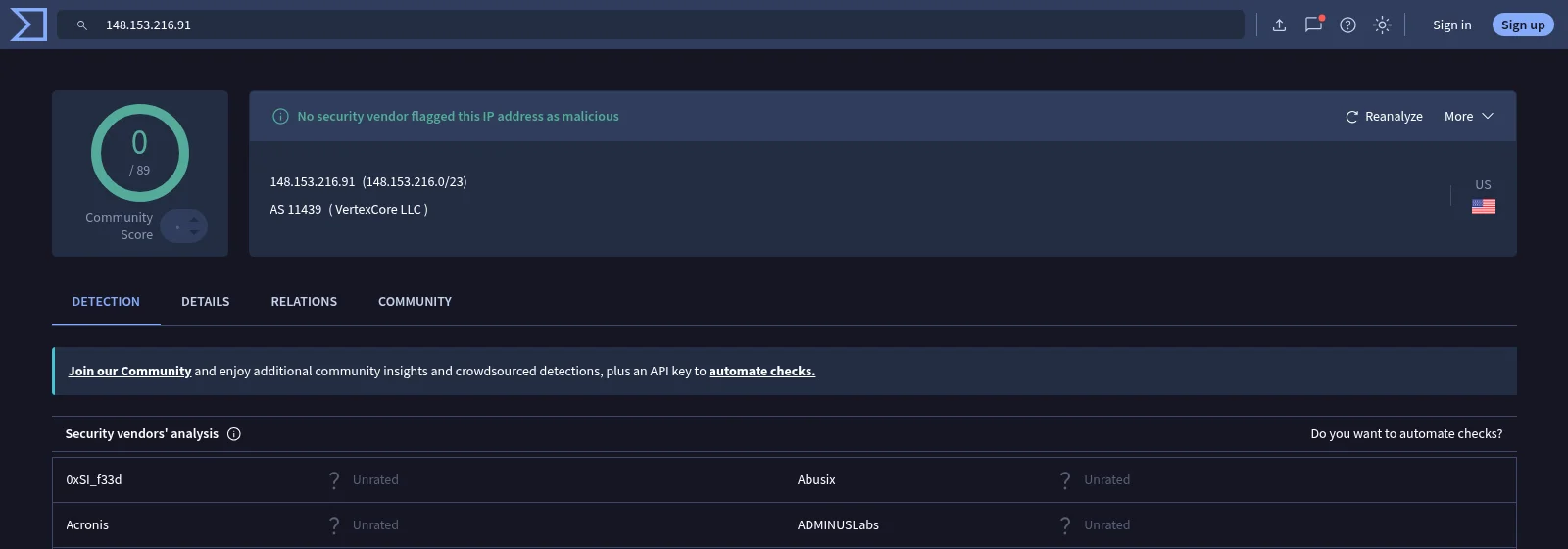
| Field | Value | Meaning |
|---|---|---|
| Detection score | 0 / 89, all vendors Unrated | No vendor has information about this address — neither good nor bad |
| Network / AS | 148.153.216.0/23, AS11439 (VertexCore LLC) | A hosting network |
A score of 0 does not mean the address is safe — it means it is unknown. This is common for new attack infrastructure and also for vendor cloud relay servers. The decision must therefore rest on your own evidence. See Verify the peer with third-party sources for how to read these services.
Step 6 — Decide
| Question | Finding |
|---|---|
| Is the beaconing real? | Yes — 90 outbound UDP check-ins exactly every 4 minutes to six ports |
| Should this device contact the internet? | A camera is a serve-only role; outbound connections are not expected unless a cloud service is used |
| Is the destination known? | Unknown — no reputation data; hosting network |
| Is it limited to one device? | No — the same peer appears in detections for other cameras; the host also beacons to 47.84.201.120 |
| Is there sign of spread? | Fan-out 3.1× and 10 suspect peers — requires checking with Relation Map |
There are two possible explanations:
| Explanation | What would confirm it |
|---|---|
| Authorized vendor cloud / remote-view service | The camera owner confirms that the vendor's cloud or mobile remote-view feature is enabled and required, and the destinations belong to that service |
| Compromised device (C2) | The feature is not in use, the destinations are not the vendor's, or the internal lateral connections are not explained |
Recommended actions for this example:
- Ask the camera owner whether cloud or remote-view features are enabled and required.
- Until confirmed, restrict outbound internet access from the camera VLAN, allowing only approved destinations (M1037 Filter Network Traffic).
- Review the internal peers of
172.168.1.100in Relation Map and investigate any host that should not receive traffic from a camera. - If the device is considered compromised, isolate it, update the firmware, reset credentials, and reinstall a clean configuration.
Step 7 — Record the outcome in Detection Tracking
Open Detection Tracking (left icon) and document progress.
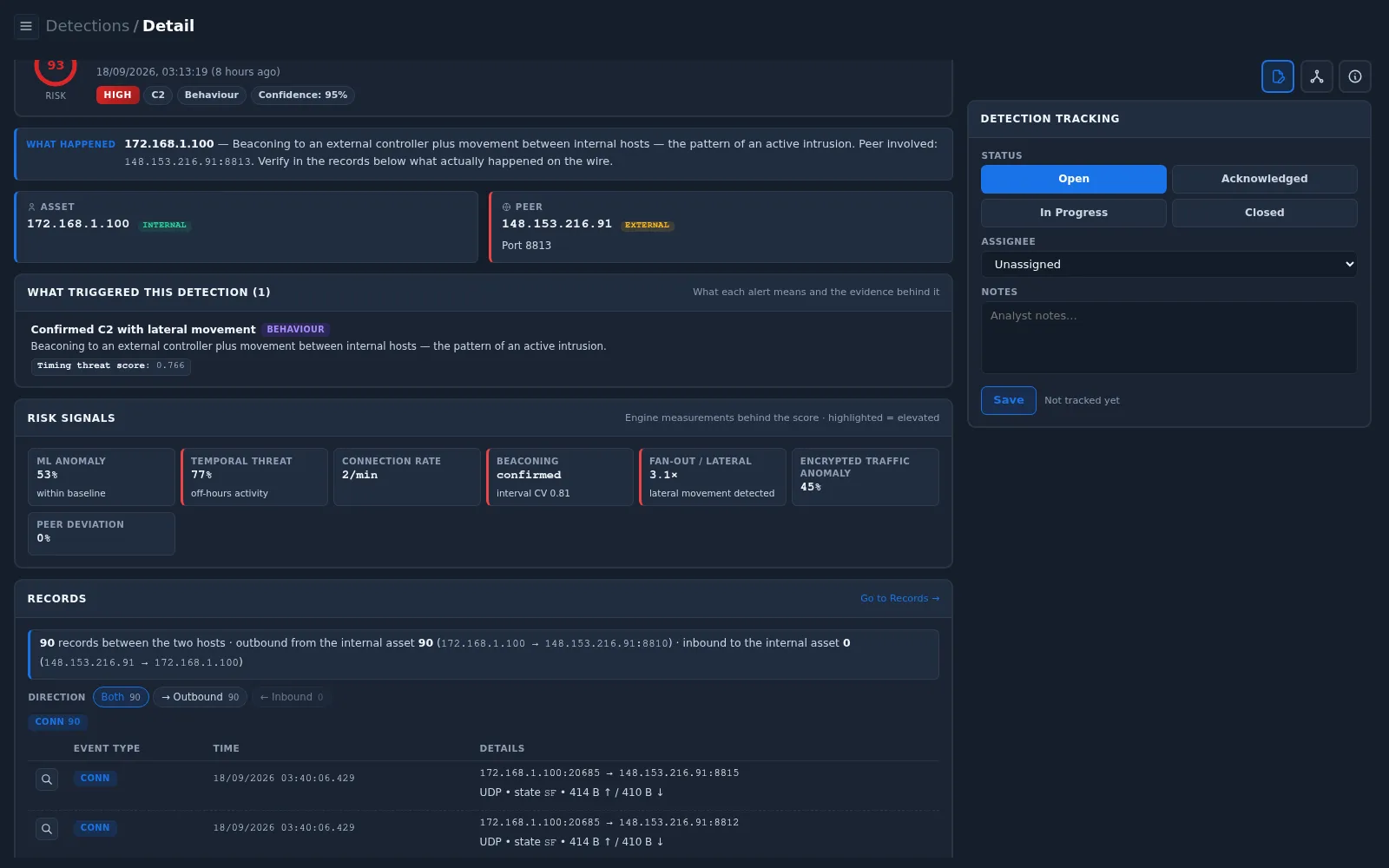
- Set Status to Acknowledged and assign the detection to yourself.
- While waiting for the camera owner or while egress is being restricted, set In Progress.
- Set Closed when the destination is confirmed as authorized (and documented), or when the device has been remediated.
Example Notes:
Camera 172.168.1.100 (Dahua, VLAN 168) beacons to 148.153.216.91 over UDP
ports 8810-8815 every 4 minutes (90 outbound records, ~414 B each, no
inbound). Also beacons to 47.84.201.120:8800. Same peer seen from other
cameras. Beaconing confirmed; fan-out 3.1x (lateral movement signal).
Peer reputation (VirusTotal, checked 18/09/2026): 0/89, unrated,
AS11439 VertexCore LLC — unknown.
Action: asked camera owner to confirm cloud/P2P use; camera VLAN egress
restricted to approved destinations pending answer. Reviewing internal
peers via Relation Map. Status: In Progress.
Select Save.
Checklist
| Step | Question to answer | Where |
|---|---|---|
| 1 | Which detection needs attention first? | Detections › All Events, filter and sort |
| 2 | What was detected, on which asset, with which peer? | Detection header, What Happened, Asset/Peer |
| 3 | Which signals raised the risk? Which ATT&CK techniques apply? | Risk Signals, MITRE ATT&CK panel |
| 4 | Is the behaviour really present on the wire? | Records |
| 5 | What is the asset? Who is the peer? Other detections? Reputation? | Participant & History, Asset Centric, Lookup |
| 6 | Is it malicious or authorized? What action is needed? | Your findings and the MITRE mitigations |
| 7 | Are the decision and progress documented? | Detection Tracking |