How to find who accesses a website
This walkthrough shows how to find which internal hosts access a specific
website — in this example facebook.com — starting from the DNS activity
view and drilling down to the individual records and devices.
The same steps work for any domain, for example tiktok.com or a domain from
a threat report.
Monitoring which websites people use can be subject to your organization's policies and to data protection regulations. Use this analysis only for authorized purposes, such as enforcing an acceptable-use policy or investigating a security incident.
Step 1 — Find the domain in DNS activity
Before a device connects to a website, it asks DNS for the website's address. The DNS view therefore shows which domains are being used on the network.
Open Applications › Activity and select DNS in the protocol list. Scroll to DNS Details › Top Queried Domains.
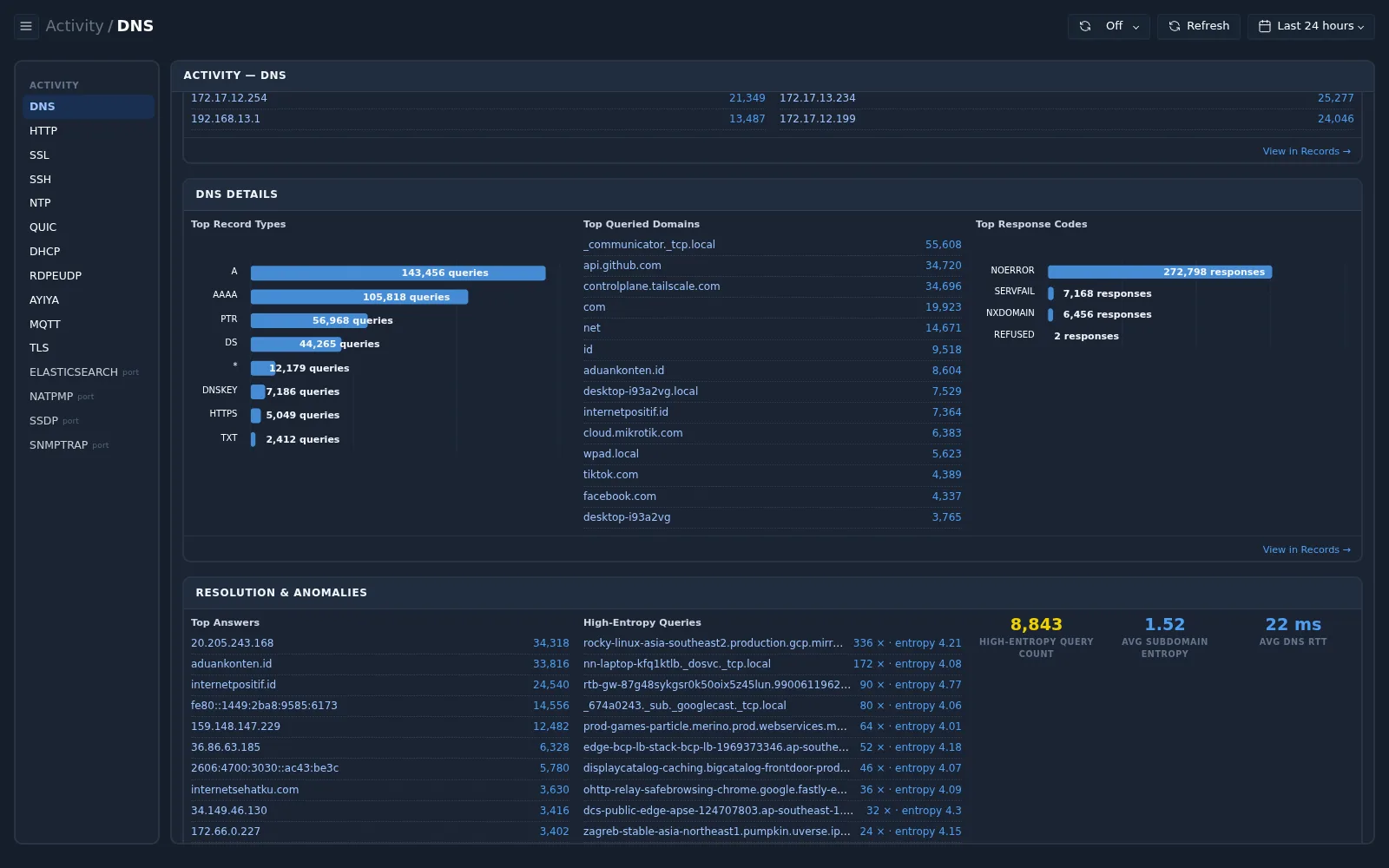
In this example facebook.com was queried 4,337 times in the last
24 hours. Select facebook.com in the list.
If the domain is not in the top list, open Records
directly, choose the dns data source, and search for the domain.
Step 2 — Review the records for the domain
Selecting the domain opens Records with the filter
Query: = facebook.com already applied, using the dns data source. The
breadcrumb shows Activity / Records.
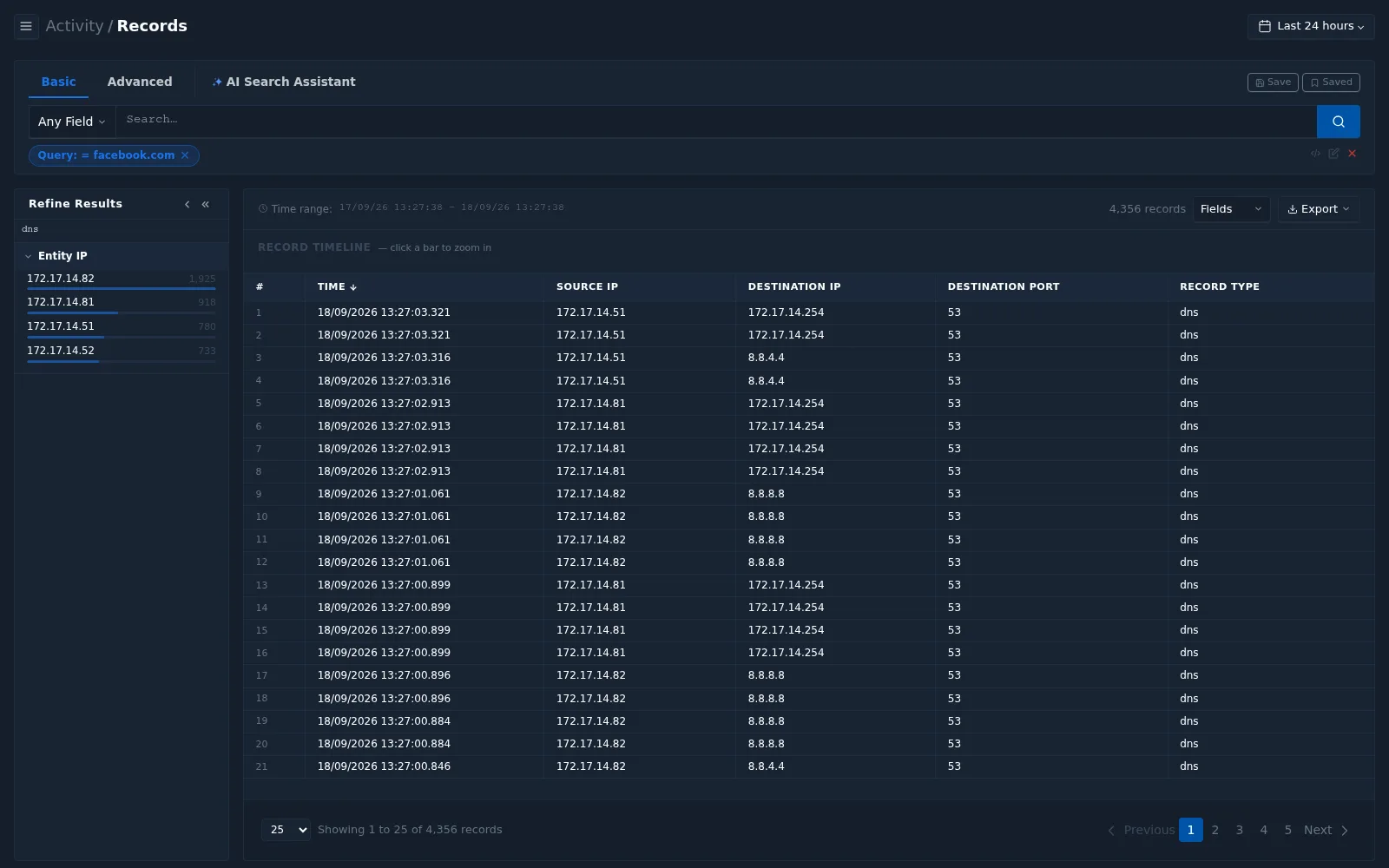
Each row is one DNS request:
| Column | Meaning |
|---|---|
| Time | When the request was made |
| Source IP | The device that asked for facebook.com — this is who accessed it |
| Destination IP | The DNS server that was asked, for example an internal DNS server or 8.8.8.8 |
| Destination Port | 53 — the DNS service |
| Record Type | dns |
Step 3 — See who accessed the domain
In Refine Results, expand Entity IP. It lists every internal host that made requests for the domain, with the number of requests.
| Entity IP | Requests (24 h) |
|---|---|
172.17.14.82 | 1,925 |
172.17.14.81 | 918 |
172.17.14.51 | 780 |
172.17.14.52 | 733 |
Four internal hosts requested facebook.com. The list is ordered by the
number of requests, so start with the top entry.
Step 4 — Inspect a record
Select any row to open the record detail panel.
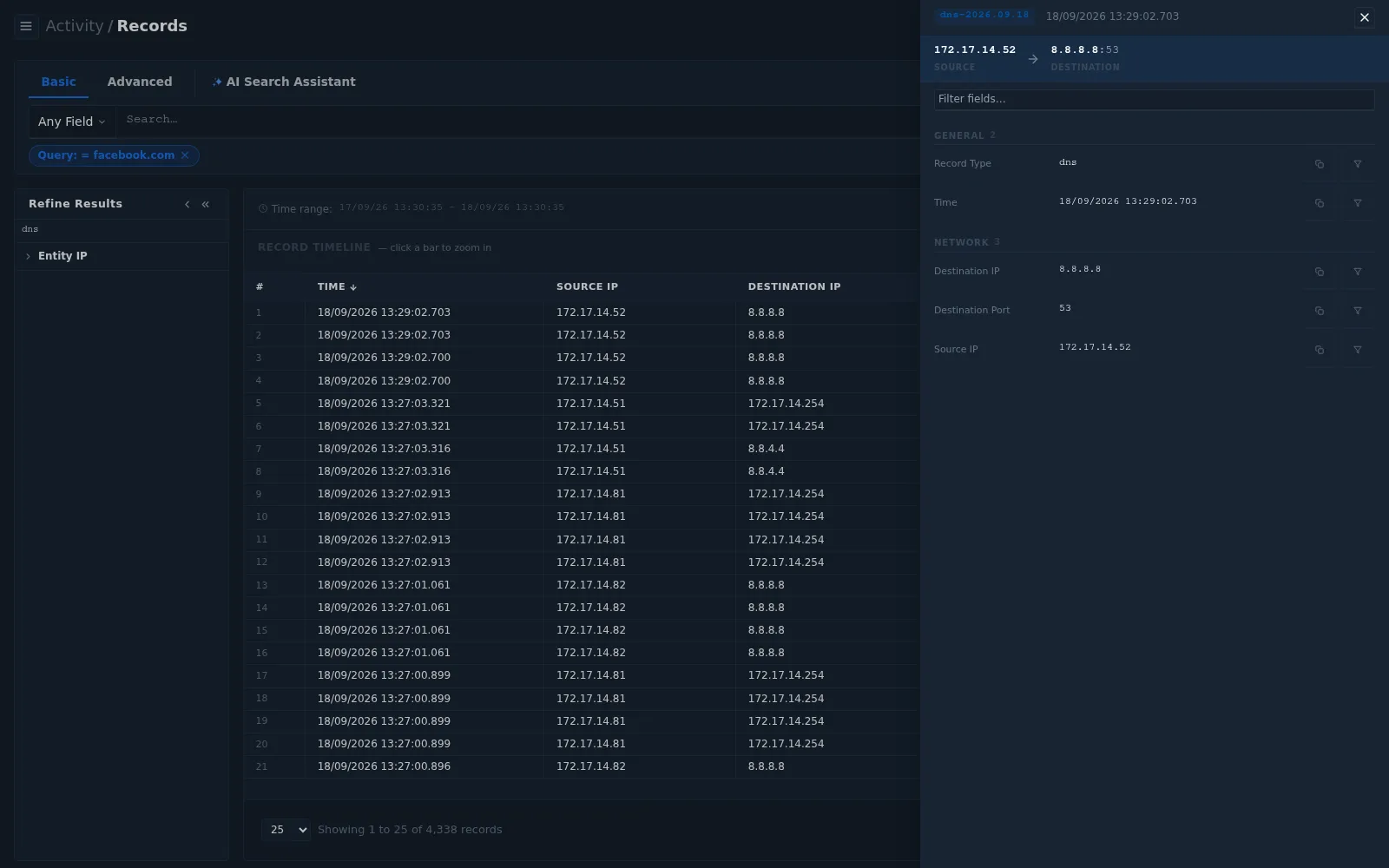
The panel shows all fields of the record, grouped (for example General and Network). For each field you can:
- Copy the value, for example to paste into a ticket.
- Filter on the value, to add it to the search.
Use Filter fields… at the top to find a field quickly.
Step 5 — Focus on one client
Select an IP address under Entity IP — here 172.17.14.82. A second
filter chip is added: Query: = facebook.com AND Entity IP: = 172.17.14.82.
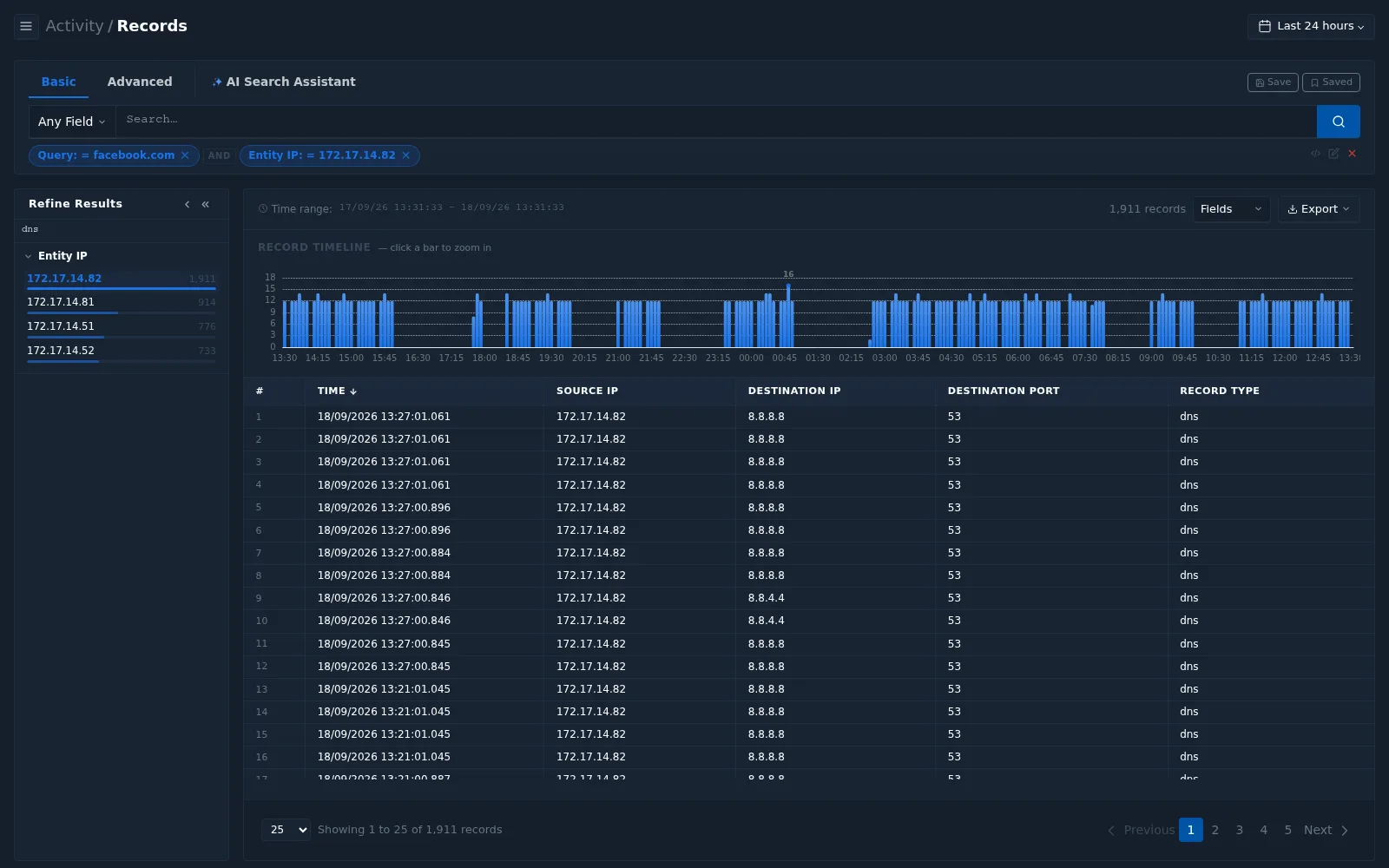
Read the Record Timeline to understand how the domain is accessed:
| Pattern on the timeline | Likely meaning |
|---|---|
| Activity during working hours, with gaps at night and at breaks | A person using the website |
| Evenly spaced requests around the clock | An automated process — an application, a script, or a device checking the service |
| A sudden burst at one time | A single session, or an event worth checking at that time |
In this example 172.17.14.82 requests facebook.com at regular intervals
day and night — the pattern of an automated process rather than a person
browsing. Select a bar on the timeline to zoom in to a period.
Step 6 — Identify the device
Find out what each host is. Open the asset profile of the IP address — for example by searching it in Inventory › Assets › Device List, or by selecting the IP where it appears as a link on other pages.
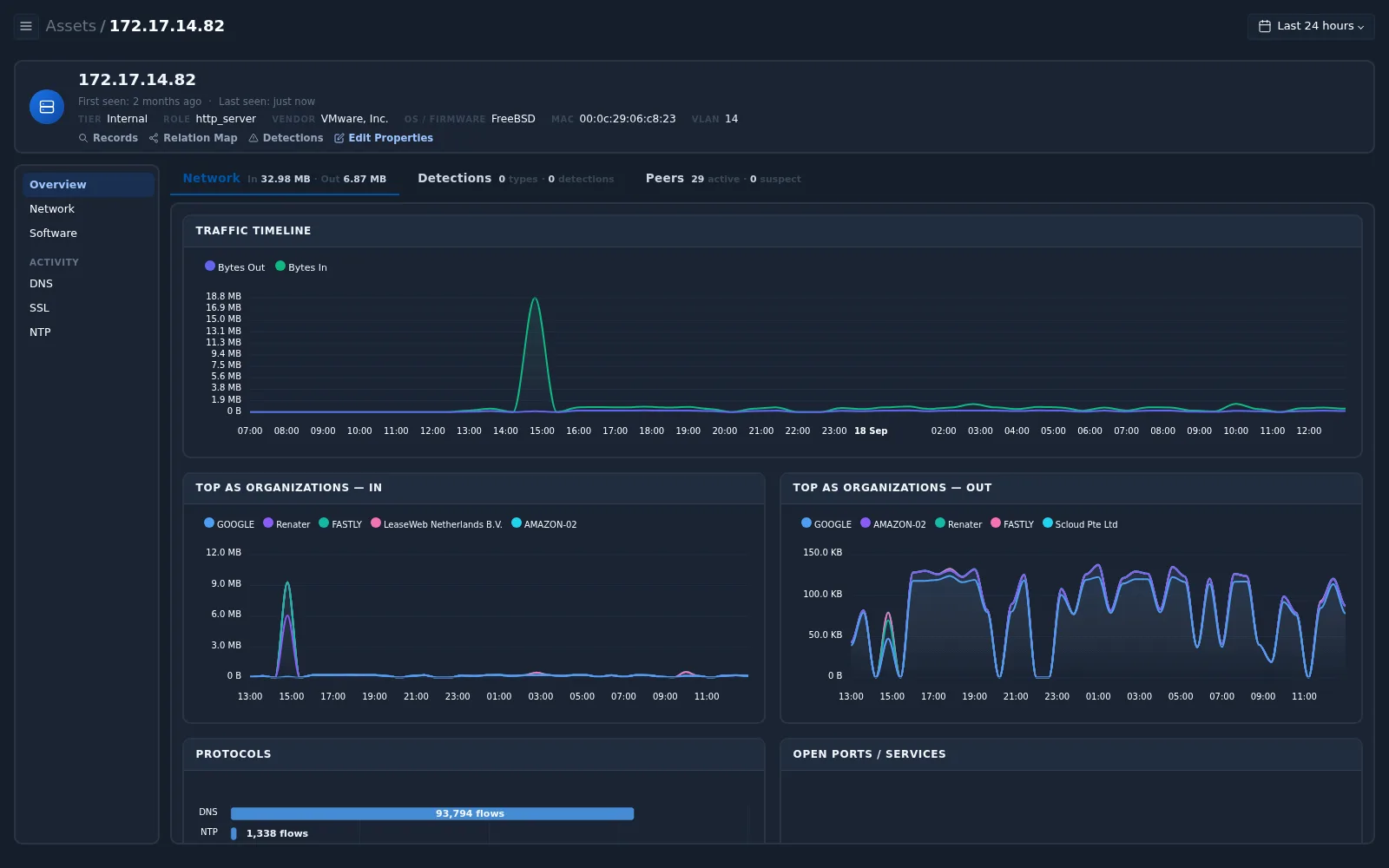
For the four hosts in this example:
| Entity IP | Name | Role | Vendor / OS | Tier |
|---|---|---|---|---|
172.17.14.82 | — | http_server | VMware, FreeBSD | Internal |
172.17.14.81 | — | workstation | VMware, FreeBSD 10.0 | Internal |
172.17.14.51 | client2 | http_server | S-Bluetech, Linux | Internal |
172.17.14.52 | opnsense | gateway | S-Bluetech, FreeBSD | Critical |
The asset profile also shows the host's hostname and MAC address (when known), VLAN, and its other activity — use Activity › DNS on the asset profile to see all domains that host requested.
Watch out for DNS forwarders
172.17.14.52 is a gateway. Gateways and internal DNS servers often
forward DNS requests on behalf of other devices. When a forwarder appears
as the source, the real requester is behind it.
To find the original device, look at records whose Destination IP is the forwarder or internal DNS server — the Source IP of those records is the device that asked first.
Understanding the result
| Question | How to answer it |
|---|---|
| Did the device really open the website? | A DNS request shows the intent to connect. Confirm with Activity › SSL › Top Server Names (SNI), or with conn / ssl records to the domain's addresses |
| Why do I see several requests per second? | Browsers and apps request several record types (A, AAAA, HTTPS) and retry; one visit can create many DNS records |
| Why is a host missing? | The device may use encrypted DNS (DNS over HTTPS/TLS), a cached answer, or a network segment that is not mirrored |
Checklist
| Step | Question to answer | Where |
|---|---|---|
| 1 | Is the domain being used on the network? | Activity › DNS › Top Queried Domains |
| 2 | Which requests were made for the domain? | Records (filtered to the domain) |
| 3 | Which internal hosts made the requests? | Refine Results › Entity IP |
| 4 | What are the details of a request? | Record detail panel |
| 5 | How and when does one host access it? | Filter by Entity IP, Record Timeline |
| 6 | What device is it? Is it a forwarder? | Asset profile |